'%3e%3cellipse%20cx='16'%20cy='16'%20rx='7.26'%20ry='7.26'%20fill='white'%20stroke='none'%20/%3e%3c/g%3e%3cpolygon%20points='5.08,11.14%2026.84,16.23%2027.56,17.03%205.8,11.94'%20fill='white'%20stroke='none'%20/%3e%3cpolygon%20points='0.28,11.35%2030.04,18.31%2030.76,19.1%201,12.14'%20fill='white'%20stroke='none'%20/%3e%3cpolygon%20points='4.44,13.65%2026.52,18.81%2027.24,19.61%205.16,14.44'%20fill='white'%20stroke='none'%20/%3e%3cpolygon%20points='6.36,15.42%2031,21.19%2031.72,21.98%207.08,16.22'%20fill='white'%20stroke='none'%20/%3e%3c/svg%3e) Compendium Labs
Compendium Labslight
Gum — a graphics language for humans and LLMs
by Douglas Hanley →
TL;DR: Gum is a JSX language for diagrams, plots, maps, and mathematical figures. Text, equations, charts, and shapes share one layout system, so you can combine them into a figure and keep editing the source. It works well with coding agents like Claude Code and Codex, and the language and tooling are fully open-source (MIT).
Try it: Open Gum Studio, browse the gallery, or jump to Getting Started for the CLI and agent setup.
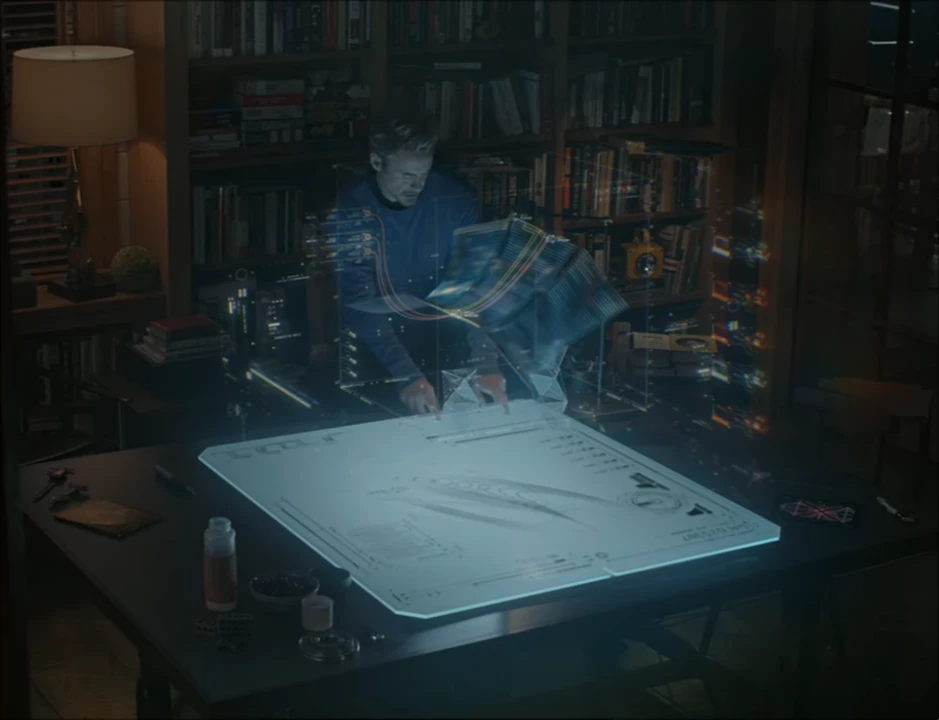
I've always been entranced by the interfaces in sci-fi movies. They're a glimpse of what people yearn to work with, unconstrained by today's tools. I particularly like the JARVIS UI from the Iron Man movies: you describe an idea, see it take shape, and refine it.
Gum is a small step in that direction. Here's a more down-to-earth example: I asked Claude Code for US unemployment since 1948, with recessions shaded in gray. It acquired the FRED data and generated the chart in one pass. I followed up with a title adjustment. The result is a figure whose data, labels, and layout remain editable in code.
The useful part is what happens next. You can change the data range, restyle the axes, add an annotation, or put the plot beside a paragraph. Gum gives those edits a common vocabulary. Let's look at how it works, then come back to making figures with an agent. Hover over a figure and click its </> button to see the source. You can also try the dark-mode toggle in the top right.
Why Gum?
SVG is an excellent output format: it stays sharp at any size and is easy to embed on the web. But authoring a whole figure directly in SVG means doing a lot of geometry yourself. A longer label can mean moving a box, which means moving its arrows, which means adjusting the space around the whole diagram.
Tools such as Mermaid, Vega, and D3 offer useful ways to work at a higher level. What I wanted was a small, composable language for figures that mix several kinds of content: a plot in a diagram node, an equation in a label, a map beside an explanation.
In Gum, you describe relationships such as “these go in a row,” “this text wraps to the available width,” or “connect these two elements.” The layout engine measures the content and calculates the geometry. That gives both a human and an LLM less bookkeeping to do when the figure changes.
Language Basics
Gum source is ordinary JavaScript with JSX: nested tags such as <Plot>, <Text>, and <Frame>. If you know React, the syntax will feel familiar. Gum itself has its own layout engine and runs without React or a browser; the React wrapper is an optional way to embed it in a web page.
The plot combines three views of the same function: a densely sampled line, a spline through ten samples, and markers at those samples. The CLI supplies the elements and helpers used here, so this is a complete figure:
const decay = x => exp(-x / 2) * sin(3 * x)
const xlim = [0, 2*pi]
const xticks = [0, [pi/2, 'π/2'], [pi, 'π'], [3/2*pi, '3π/2'], [2*pi, '2π']]
return <Plot xlim={xlim} ylim={[-1, 1]} grid aspect={1.7} xticks={xticks}>
  <SymLine fy={decay} xlim={xlim} opacity={0.25} />
  <SymSpline fy={decay} xlim={xlim} samples={10} stroke={blue} stroke-width={em(0.1)} />
  <SymPoints fy={decay} xlim={xlim} samples={10} point-size={em(0.4)} fill={red} />
</Plot>
JavaScript also gives us loops, functions, and custom marks. Here the samples are little rotating squares, which produce an object I've come to quite enjoy (codename Shai Hulud):
Both examples describe a rule for generating a figure. Underneath that, Gum handles the more mundane questions: how big is each element, where does it go, and how does it fit beside everything else?
Building Blocks
The basic unit is an Element. Most elements have lengths: how wide, how far apart, how thick. Gum gives those lengths three units:
| Length | Meaning | Good for |
| 0.5 | Fraction of a reference size | Layout proportions |
| px(150) | Absolute pixels | Canvases, strokes |
| em(1.5) | Multiples of the font size | Padding, gaps, radii |
In a layout length, a bare number is a fraction of the relevant reference size: width={0.5} means half the established parent width. Use px for pixels and em for multiples of the font size. Positions inside a graph or map use data coordinates, which we'll get to shortly. Values such as aspect ratios and growth weights are dimensionless.
Two central layout ideas are positioned canvases and flowing stacks. A Group is a canvas where children specify pos={[x, y]} and anchor. Below, a rectangle four grid cells wide and three tall is placed at the center of each canvas. The only change is which part of it gets pinned to that point.
The rectangle uses fractions of the canvas; the dot uses em(0.5). Ems are especially handy for padding, gaps, and corner radii: changing the base font size keeps those details in proportion to the text.
The second way is the stack. HStack and VStack lay their children out in flow, one after another. If you've used CSS flexbox you already know the vocabulary: gap, justify, align, grow. Children keep their natural size unless told otherwise, and any leftover space goes exactly where you direct it.
In the first row nobody asks for extra space, so the children simply pack at the start. In the second, a Spacer soaks up the slack and shoves its neighbors apart. In the third, B claims the slack for itself with grow. The figure is its own example, by the way: it's a VStack of HStacks, with the labels held at a fixed em width and the tracks growing to fill whatever remains.
What happens when space runs short is where Gum parts ways with most vector tools. Ordinary layout reflows rather than scaling: text rewraps, growers give up their slack, and fixed sizes stay fixed, just like on a web page. Drag the slider to squeeze this row and watch who gives way.
The blue box keeps its 90-pixel content width and the red one keeps the natural width of its label. The middle box absorbs the difference, growing taller as its text wraps. align="stretch" makes its neighbors match that height. For a finished composition that should scale as a unit, set fit on its container.
Scaling Up
The same layout ideas carry into more specialized elements. A Graph places its children in data coordinates. A Plot adds axes. A Network connects elements by id. Here, three small plots become the pieces of a low-pass filter diagram:
Notice that the filter in the middle isn't a Node at all. It's a TitleFrame with an id, and that's all an Edge needs. Any element can be an endpoint, and arrows stop at its visible outline.
The same mixing works inside a chart. These animals are ordinary text elements positioned at each bar's index and top speed:
Props can also reach the parts a component creates. Read axis-label-font-family left to right: the axes, their labels, then the font family. Here it selects mono, while border-radius rounds the bar tops.
Maps and Projections
Geography fits into the same picture. A GeoMap combines a geographic source, a projection, and styles for the features. These two panels share the same countries and city coordinates; the second turns the globe toward the Pacific.
The markers are ordinary Circles with positions like pos={{lon: -122.42, lat: 37.77}}. Labels and sampled routes can use the same coordinates. The map handles their placement and hides points on the far side of a globe, while text stays upright and marker sizes use the usual layout lengths.
world_countries() and us_states() provide bundled geography. You can bring your own GeoJSON or TopoJSON, color features from data, and fit the view to a region. The maps guide walks through those choices.
Projection is a more general idea, too. A Graph can take points in polar coordinates, apply a logarithmic scale, or project three-dimensional positions onto the page. Here, the helix, markers, arrows, and labels all use {x, y, z} records and share isometric_projection().
A projection maps the supplied points; paths still need enough samples to describe their curves. The result is a vector drawing, with ordinary control over stroke widths, label sizes, and drawing order. The projection guide covers polar, logarithmic, and camera views.
Making Your Own Components
Once a combination is useful, give it a name. The two map panels above share this little function, shown here without the TypeScript annotations used by the blog:
const Panel = ({ title, children, ...props }) => (
  <TextCol gap={em(0.65)} align="center" {...props}>
    <Text font-weight={bold}>{title}</Text>
    {children}
  </TextCol>
)
Each Panel receives a different map as its child. Change the function and both panels change together. The same approach works for labeled nodes, figure captions, or a slide layout you want to reuse across a talk.
Wrapping Text
SVG leaves paragraph layout to the author. Gum measures text using its font data, breaks lines at the allocated width, and aligns the result with the rest of the figure. IBM Plex Sans and Mono are bundled, and you can register other fonts. Ordinary layout keeps the font size you asked for as the available width changes.
Within a paragraph, a Span restyles a run of text, and any Gum element can sit inline: a shape, a formula, an emoji. Everything lines up on a common baseline, which stacks can use too via align="baseline".
SVG exports default to glyph outlines, preserving text shapes and placement without requiring fonts in the viewer. PDF keeps text live by default; PowerPoint keeps prose live and outlines math. The CLI's --text-mode option controls that choice. Live SVG text needs matching fonts in the viewing environment. Emoji remain live text and depend on the viewer or rasterizer.
Typesetting Math
I love KaTeX's approach to math rendering, so I kept its parser and built a layout engine on top of Gum, with TeX's rules for spacing, scripts, and stretchy delimiters. Hand a LaTeX string to Latex (or Tex for inline math) and you get an ordinary Gum element. Here's a Gaussian integral:
Fractions, roots, big operators, matrices, cases, and aligned derivations all work this way. A file containing just a Tex element can also be rendered as a standalone formula in SVG, PNG, or PDF.
Since a formula is just an element, it can go anywhere an element can. The most useful place turns out to be plots. Tick labels, axis labels, legends, and titles all accept elements, so you can have proper multiples of π on the axis rather than 1.57 and 3.14.
And it goes the other way too: you can put Gum inside the math. Under the hood a formula is a tree of elements like Frac, Sqrt, SupSub, and MathArray, and you can build that tree yourself in JSX with anything you like as the operands. I call this one Shape Algebra.
Each term of the series gets half of what's left of the square, the radical stretches around a circle over π, and the brackets grow to fit a matrix of colored swatches. The math elements measure their children and arrange them, just as other Gum containers do.
Putting It Together
Now put those pieces together. TextCol stacks paragraphs, Bullets handles hanging indents, and Slide supplies a title and the composition's proportions. Here's the decay curve from the top of the post, with an explanation beside it.
The columns share the available width through grow, the text wraps, and the formulas sit inline with the prose. fit scales the completed slide to its host.
Pages and Documents
A Page is the output surface for a figure, with its own dimensions, background, and typography. The name replaces the former Svg element: the same page can become an SVG, a PNG, a PDF page, or a PowerPoint slide. The CLI wraps a bare figure in a Page automatically, so the examples above can stay short.
A Document collects pages in order and supplies shared defaults. Each Page lays out independently and can override those defaults. This lets a whole slide deck live in one source file. Save this as talk.jsx:
<Document title="Damped oscillation"
  width={px(960)} height={px(540)} font-size={px(28)}>
  <Page>
    <Slide width="fill" height="fill" title="The signal">
      <Plot width="fill" aspect={2} xlim={[0, 2*pi]} ylim={[-1, 1]}>
        <SymLine fy={x => exp(-x/2) * sin(3*x)} xlim={[0, 2*pi]}
          samples={200} stroke={blue} stroke-width={em(0.1)} />
      </Plot>
    </Slide>
  </Page>
  <Page background={slate} color={white}>
    <Slide width="fill" height="fill" title="Reading the curve">
      <Bullets>
        <Text>The amplitude shrinks over time.</Text>
        <Text>The spacing between zero crossings stays the same.</Text>
      </Bullets>
    </Slide>
  </Page>
</Document>
The Document sets the page size and font size; the second Page changes its colors. Slide still handles the title and content layout inside each page. Page boundaries are explicit, so overflowing content doesn't automatically create another page.
gum talk.jsx -o talk.pdf
gum talk.jsx -o talk.pptx
gum talk.jsx --page 2 -o second-page.png
PDF and PowerPoint exports include every page. For a single image, --page selects a page starting at 1. You can also keep slides in separate files: gum slides/ -o talk.pdf combines a directory into a multipage PDF. Gum Studio previews the pages of a Document with left and right arrows.
Working with an Agent
That brings us back to JARVIS. The workflow I find useful is a short loop: describe the figure, have the agent write Gum source, render a PNG, inspect it, and revise. The CLI's gum docs command gives the agent a version-matched language reference and runnable examples. The Gum authoring skill adds guidance on how to render and inspect its work.
Be specific about the relationships that matter: what should line up, which labels belong together, and what the reader should notice first. A follow-up such as “give the labels more room and keep the plot at the same size” gives the agent something concrete to change. Data and factual labels still need checking, just as they would in a hand-made figure.
The unemployment chart at the start needed only a title adjustment after the initial generation. Diagrams are another natural fit. I asked for a typical retrieval-augmented generation pipeline, and the first version was close enough that I made only a few follow-up tweaks. Its nodes hold small illustrations of the documents, vector store, and model:
Maps give us another kind of finished figure. This Route 66 example from the Gum demos combines bundled state boundaries, an approximate route, labeled stops, and a row of state summaries. The route is an overview of the historic corridor; local turns and alternate alignments are omitted. Use its </> button for the complete Gum source.
The base map takes care of the geography. Choosing which stops to label, making space for those labels, and balancing the map against the surrounding text are still design decisions. You can inspect the full-size SVG for the details.
Finally, here's a schematic Artemis II mission profile. For this one I supplied an Apollo 11 diagram as a visual reference. JavaScript describes the curves, and Gum places the arrows and annotations. The scale and orbit shapes are illustrative.
This example needs more deliberate positioning than a standard plot. The source gives us a place to make those decisions and adjust them: move an annotation, change a curve, or try another arrangement without rebuilding the whole figure.
Getting Started
The quickest way to try the language is Gum Studio. Start with a figure from the gallery, edit its source, and watch the preview. The docs explain the elements and layout rules.
For local files and coding agents, install the current beta CLI with Bun, then save a figure as figure.jsx:
bun install -g gum-jsx@beta

gum figure.jsx -o figure.svg
gum figure.jsx -o figure.png --ratio 2
gum figure.jsx -o figure.pdf
The CLI includes math, maps, and documentation. Omit -o to display a figure in a terminal that supports the kitty graphics protocol.
For an agent, start with gum docs, then use gum docs search "page" or gum docs get elements/Document to find the relevant references. The optional Gum plugin setup adds the authoring skill. Have the agent render a PNG after meaningful edits and inspect it before calling the figure finished.
For web applications, @gum-jsx/react lets regular React state drive Gum figures, including the width slider in this post. Most figures here render through that wrapper; the Route 66 map is an exported SVG. Both use the same Gum layout and drawing elements.
What Still Takes Work
My experience so far is that an agent with the Gum skill can get a useful figure together in one or a few rounds. More involved compositions take more judgment. I've seen models miss overlaps, misread relative positions, and leave awkward spacing even after looking at a render. Those are concrete reasons to keep inspecting the output.
I'd like to see better evaluations of those visual tasks: can a model spot a clipped label, compare two gaps, or tell which arrow crosses which box? Gum already handles much of the geometry, but choosing what belongs in a figure and judging whether it communicates clearly still takes care.
Please try Gum and tell me what you make with it. I'm interested in where the composition model helps, where you still end up doing tedious positioning, and what would make the next figure easier to create. Start with the gallery, change something, and see where it takes you. Thanks and...